Table of Contents
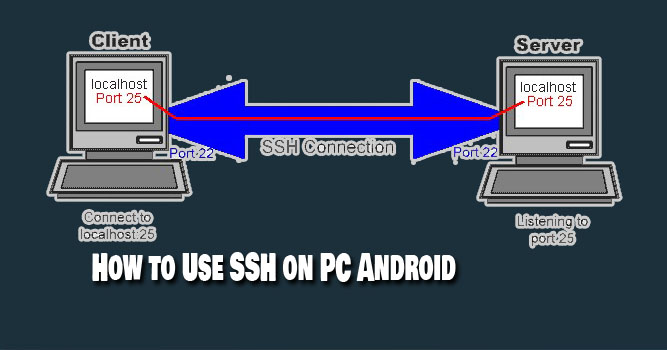
VpnStuff.net — SSH allows you to remotely server or other devices connected to the internet network. This article will share How to Use SSH on Android.
Secure shell or SSH is a transfer protocol that allows users to control a device remotely or remotely via an internet connection.
In the previous article we have shared how to use SSH on Windows, then for Android the method is almost the same, the difference only lies in the tunnel used.
How to Use SSH on Android
There are many tunnels that you can use to use SSH on smartphones, such as KPNTunnel, HTTP Injector and so on that you can download via the Google Play Store. In this tutorial, we will give an example of using the HTTP Injector application.
1. Download SSH HTTP Injector application.
You can download it via google play store or via the link below.
- https://play.google.com/store/apps/details?id=com.evozi.injector
2. Create SSH Account
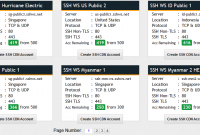
To create an SSH account you can create it through SSH service provider sites such as FastSSH.com or SSHkit.com and many other SSH service provider sites.
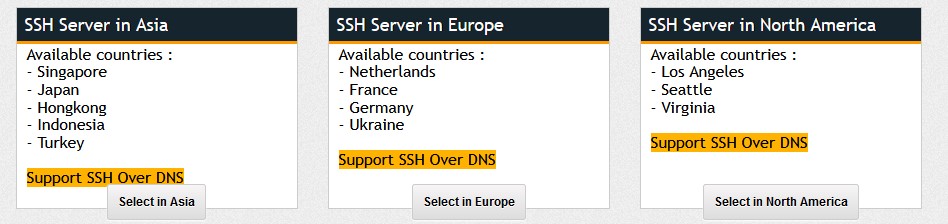
You can choose the SSH server of the country you want. Enter the username and password up to you, according to your wishes.
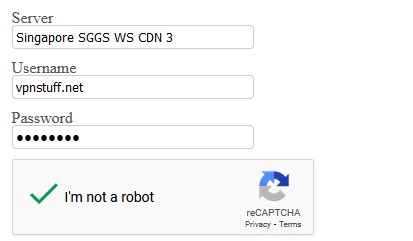
Click CREATE and wait a few seconds your SSH account will appear.
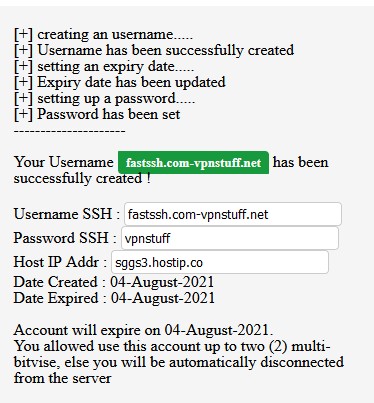
SSH account creation is complete. You have got an SSH account. Now proceed to the next step.
3. Setting Application and Connect SSH
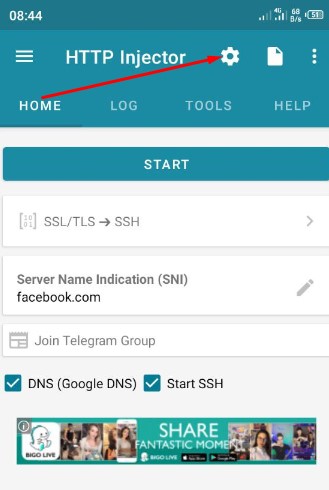
Open the HTTP Injector application. Tap the wheel sign like the following picture.
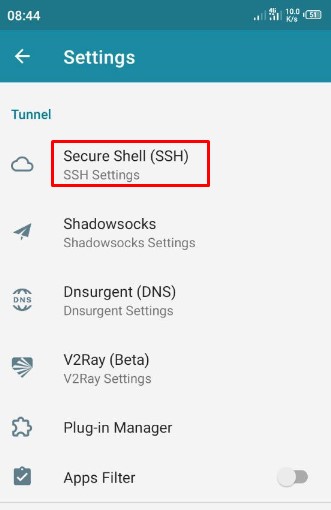
Select Secure Shell (SSH)
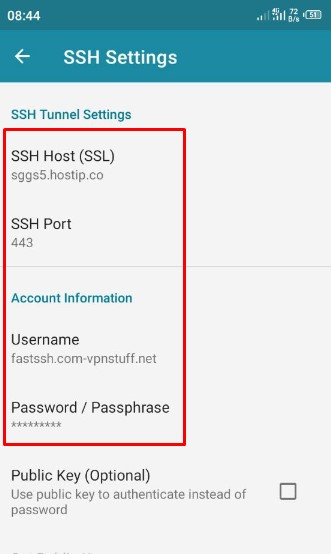
Fill the SSH Account Created on FastSSH Site above. Like username password, port and host.
Back to HOME menu HTTP Injector and tap START. Then tap LOG info.
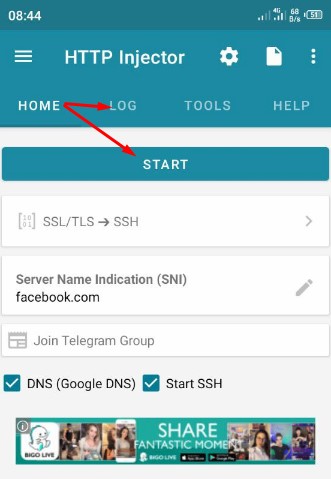
SSH on HTTP Injector has ben succes connected.
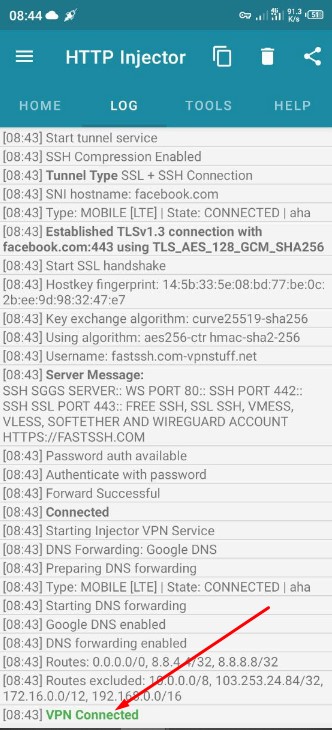
Done.
You can already use it for browsing streaming downloads and so on. And the ip address on your android has changed according to the SSH server you are using.